/tools/optimized · daily
One expert hack per tool, every morning.
Deep tool craft, signature prompts, multi-tool workflows, integrations — plus the AIO / SEO / GEO moves that make your stack legible to answer engines. Tactical, installable today, written for the AI Health Stack.
7 ways to use Canva (Magic Design) to elevate your content's search visibility
Boost your content's search engine presence in 7 quick steps using Canva's Magic Design tools.
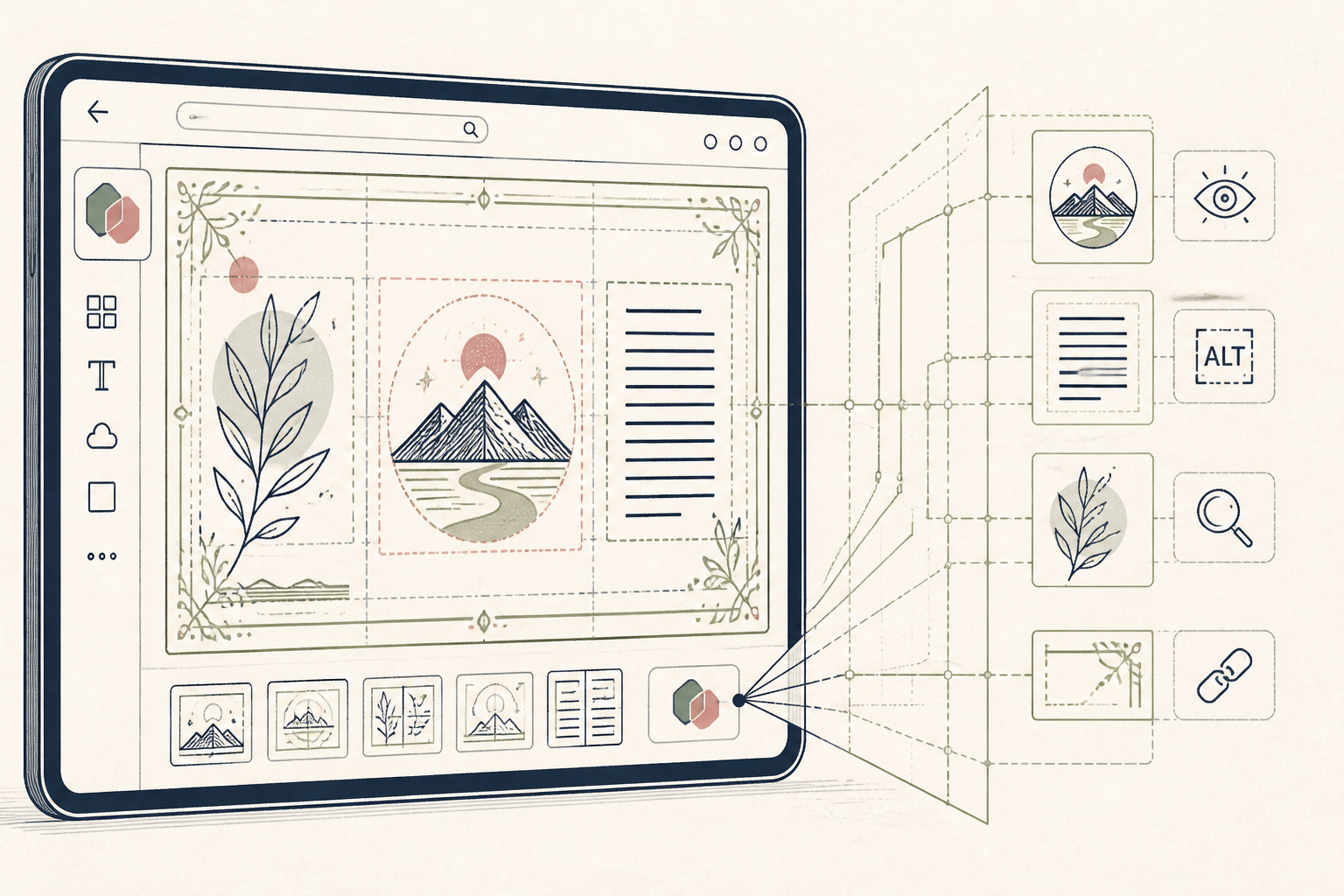
Creating visually appealing content is only half the battle; ensuring it reaches the right audience through search engines is the other. Many wellness operators overlook the small but impactful visual SEO elements that can dramatically improve content discoverability. Canva's Magic Design features offer direct ways to integrate these elements without needing deep design or SEO expertise.
- Generate Alt-Text-Ready Graphics — Search engines rely on accurate image descriptions (alt-text) to understand your visuals. Magic Design can create layouts that inherently suggest clear, descriptive alt-text. Try it now: In Canva, select "Create a design" → "Magic Design" → choose a template, then in the prompt, describe your topic and include "with space for clear text labels." Focus on primary elements for easier alt-text generation later.
- Standardize Your Brand Kit for Image Consistency — Consistent branding helps search engines associate your visuals with your domain. Using a brand kit ensures every infographic or social card reinforces your brand identity. Try it now: Go to "Brand Kit" in your Canva dashboard → "Colors" and set your primary, secondary, and accent colors. For practitioners, this keeps client deliverables on-brand automatically.
- Produce Schema-Friendly Infographics — Infographics can be structured to support schema markup, making it easier for search engines to present them in rich results. Focus on clear, scannable sections that translate well to structured data. Try it now: From the Canva homepage, type "Infographic" into the search bar → select a template under "Magic Design" results. Choose one with distinct sections (e.g., numbered steps, clear headings) that can easily map to `HowTo` or `FAQ` schema.
- Create Topic-Specific Social Cards — Every social share is a signal. Design cards optimized for specific keywords and topics to ensure better indexing when shared across platforms. Try it now: For an individual, create a blank Instagram Post (1080x1080px). Use "Magic Design" and prompt it with a specific keyword, e.g., "social card for stress reduction tips." Add a clear, concise headline and your website URL.
- Design Accessible Printables — For individual use, creating a printable resource (like a fridge magnet protocol) with large, clear text and high contrast improves accessibility, which is a subtle SEO signal. Try it now: In Canva, search "Magnet template" → choose a template for your desired size. Use the text tool to add your protocol steps, selecting a high-contrast font and size (e.g., 24pt+ sans-serif) for readability.
- Batch-Export with Keyword-Rich Filenames — How you name your files before uploading matters. Use Magic Design to rapidly create multiple variations, then rename them strategically. Try it now: Once you've designed an image (e.g., a "healthy breakfast ideas" infographic), click "Share" → "Download" → select "PNG" or "JPG." Before saving, rename the file to include relevant keywords, like `healthy-breakfast-ideas-nutrition-plan.png`.
- Optimize Headers within Long-Form Visuals — If you’re making a long-form visual like a detailed guide or a one-pager, ensure your internal headings are clear and use relevant keywords, mimicking good on-page SEO practices. Try it now: Open an existing Canva design or create a new "Document" (A4 size). Use the "Text" tool and consistently apply "Heading 1," "Heading 2" styles for your main points and sub-points. This visual hierarchy guides both the reader and search engine crawlers.
This practice contributes directly to the visibility of your Protocol documentation.
Archive
Previous hacks · 59
Personalised
More daily tool hacks for your stack
Based on what you've been reading — always learning.
Related
Keep exploring the stack.
Three doors into the rest of Wellness & AI — pick the one that matches where you are.
Build it live in 45 min
Bi-weekly Zoom workshop with Sabin. Build your AI Health Stack end-to-end, ask one real question, leave with a working setup.
Reserve a seatThe 3-Layer Course
Build your own AI Health Stack in 4 weeks. Same method we use with private clients — Research, Ledger, Protocol.
See the coursesThe AI Health Stack
Every AI tool I actually use for personal health, one line each. Click any tool for a free deep-dive.
See the stack