Automation · Setup in 10 min· Setup Pass
Set up Devin to Build a Custom Health Data Scraper in 10 minutes
Use the AI agent to write and deploy a simple Python script for scraping and structuring personal health data from a web source.
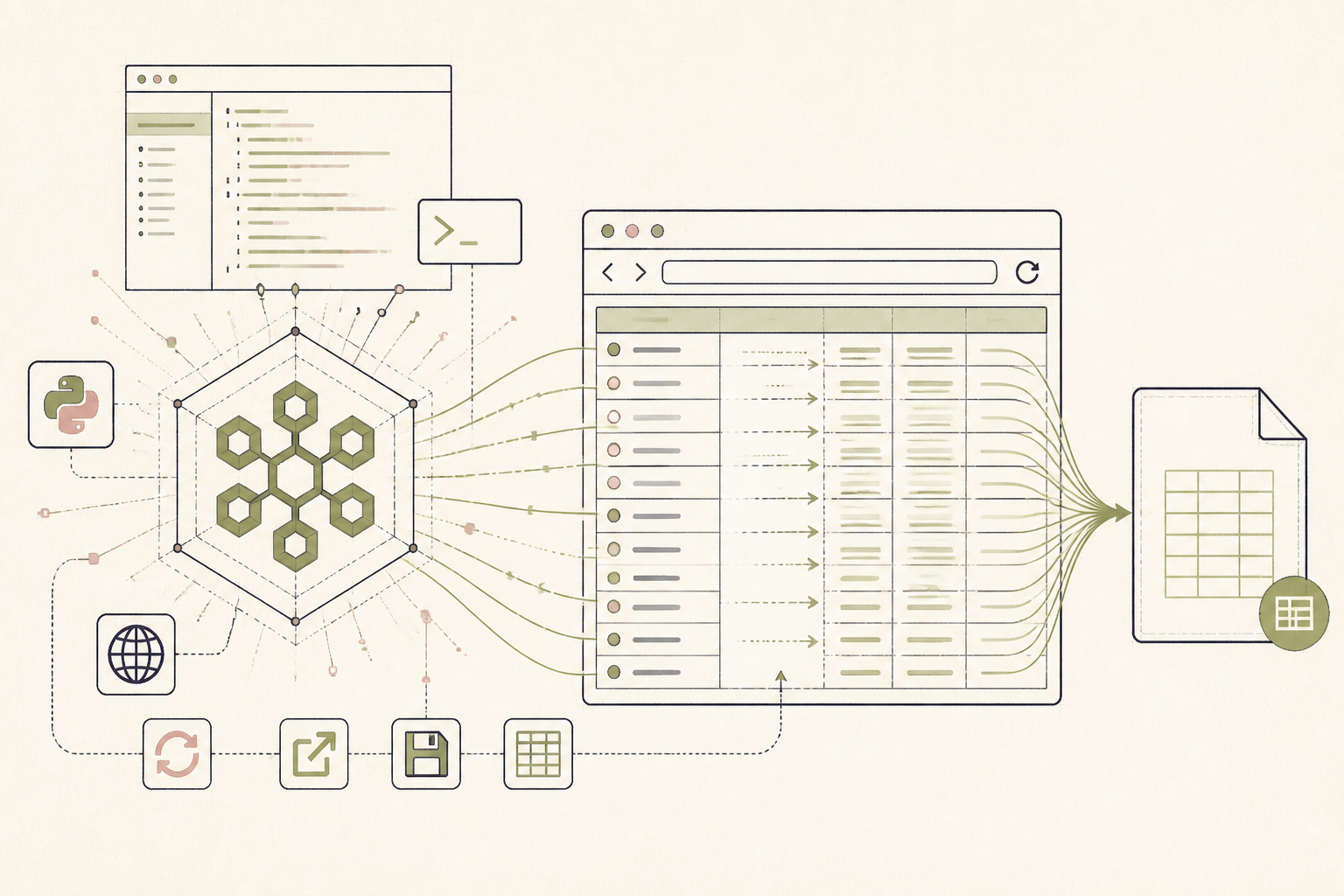
You have health data on a website—perhaps a public supplement database or a personal data portal without a proper export function. This guide configures Devin to write a simple Python script that scrapes this data and saves it into a clean, usable CSV file, automating a tedious data collection task.
Before you start
- Access to Cognition's Devin
- The URL of the data source you want to scrape
- A clear idea of the data points to extract (e.g., "Product Name", "Dosage", "Price")
The steps
- 01
Define the Scraping Task
Start a new session in Devin. In the initial prompt, clearly define the goal: "Write a Python script using BeautifulSoup and Requests to scrape data from [URL]. Extract the following fields: [Field 1], [Field 2], [Field 3]. Save the output to a CSV file named output.csv."
- 02
Provide the Target URL
When Devin asks for the URL, provide the exact web address of the page containing the data. If the data spans multiple pages, specify the logic for navigating to the next page, such as clicking a "Next" button or incrementing a page number in the URL.
- 03
Specify the HTML Structure
To help Devin locate the data accurately, inspect the page source yourself (right-click -> "View Page Source" or "Inspect"). Identify the HTML tags and classes surrounding the data points you need. For example: "The product name is within an `<h2>` tag with the class `product-title`."
- 04
Review and Refine the Code
Devin will generate the Python script and show its plan. Review the code for correctness. If it fails or misses data, provide specific feedback like, "The script is missing the dosage information. It is located in a `<span>` with the class `dosage-info`." This refines the agent's approach.
- 05
Execute the Script and Download the Data
Once you approve the plan, Devin will execute the script in its own environment. After it finishes, it will provide a link to download the resulting CSV file. You can now use this structured data as a Research-layer ledger for analysis in a spreadsheet or other tools.
Honest note
Devin is a powerful coding agent, but it operates on its own cloud environment. Do not give it URLs that require personal login credentials or contain sensitive protected health information (PHI), as you are exposing that data to a third-party service.
Want the whole stack, not just one tool?
The free 10-Day Challenge wires these together. Or join the free 45-min live workshop and watch me build it end-to-end.